Showing posts with label windows 7 support. Show all posts

26 Jun 2012

How to Activate Windows 7 on your Computer

Windows activation is necessary to ensure that the installed operating system is a genuine copy of Microsoft windows. When Windows is activated, you can use features like Windows Update(see:Why Should You Update Your Windows Regularly?) and other information on windows 7.To activate windows 7 on your computer, follow the given steps:
If you want to run Windows Update in windows 7 then follow this blog-How to Run Windows Update in Windows 7
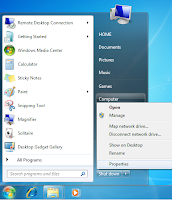
How to Activate Windows 7 on your ComputerStep1: From the Start button in your windows 7, go to the Computer.

Step2: Right-click Computer and click Properties to view the current properties of your computer system. Click on Activate Windows now.

Step3: Click “Activate Windows Online Now” to begin the activation procedure.  Your computer will connect to the Internet and confirm the product key you input when you installed or set up your operating system.

Step4: After completing the all above steps, click “close” to close the activation screen .If the activation is successful, Windows 7 displays a success message and a “Genuine Microsoft Software” badge. 

See also: Windows Update: The Best Way to Enhance Your System Performance
                What to do when Microsoft Windows 7 keeps restarting itself


23 Feb 2012

How to Turn Off Automatic Java Updates in Windows 7

When you install java programming language in your windows 7 machine, the software is configured to automatically give update whenever a new version of java becomes available. If you want to annoying these message, you can built from  java control panel to adjust your update setting .Given below steps help you to disable the automatic java updates.
If you want to store all information including new and modified then follow this article which will give a proper idea to store information backup. How to Backup Registry in Windows 7

Step1: from start menu, select the control panel for access the items, which is available on the right side of the start menu.

Step2: Click within the search box which is located at the top-right corner of the resulting window and type "Java."
java control panel
Step3: Select the "Update" tab located near the top of the Java Control Panel window and uncheck the box labeled "Check for Updates Automatically."

Step4: After completing the all above steps the select the "Never Check" button when prompted and finally, click "OK" to confirm your choice and close the Java Control Panel.


Note:You can reach V tech-squad online technical support for any of your queries relate to Windows 7 Support at their Toll Free No +1-877-452-9201

22 Feb 2012

How to Create a Restore Point in Windows 7

System Restore is a component of Microsoft's Windows Me, Windows XP, Windows Vista and Windows 7.where operating systems give permission to roll back of system files, registry keys, installed programs, etc.to a previous state in the event of system malfunction or failure.

Windows 7 creates and save restore points. Windows 7 will restore the documents in your computer to the previous state. Windows saves restore points weekly and also before installing new programs. You can also create a restore point any time when it is necessary.
If you want to know more about  restore point and restore utility in Windows 7 then follow the article ,which will give the more idea about backup and restore.How to Use Backup and Restore in Windows 7
If you think restore point is not necessary for you ,then you can delete it,find the steps from How To Remove System Restore Points In Windows 7 which i have already discussed in same blog.

Step1: From start button, right click on my computer and go to properties to open the new window.

system restore point
Step2: After opening the new window, click on system protection link. The System Properties dialog screen opens up and you will want to click on Create. If Windows prompts you for a password or confirmation, enter your administrator password or click "Continue" to provide confirmation.

Step3: Click the "Create" button. A pop-up window prompts you for a short description. Type in a description f The time it takes to create the restore point will depend on the amount of data, computer speed etc.or the restore point which will help you remember the point at which is created.

All done!  Now if something goes wrong you have the satisfaction knowing that you can go back in time to the point before the changes were made.

Note:If you want get technical support  for windows 7 then you can reach online technical support service desk of V tech-squad at their Toll Free No +1-877-452-9201.